Installing SUSE Linux Micro on Hyper-V
SUSE Linux Micro doesn't install like regular desktop or server OS ; farewell the YaST wizard.
The selfinstall ISO just copies a pre-built image to disk, then runs a first-boot configuration from a labeled block device you provide.
The official documentation was both too long for my usage and too shallow with regards to Hyper-V.
Here's the shortest path from zero to a running SLE Micro on Hyper-V.
Here is the video walkthrough in one take & realtime :
1. Download the base image
Grab the selfinstall ISO from the SUSE Customer Center for the supported flavor or openSUSE MicroOS downloads page. This is the installer that copies the pre-built image onto your target disk.
2. Generate your Ignition config
Head to Fuel Ignition  and fill in the form : hostname, network (static or DHCP), user accounts, SSH keys, services to enable.
At the bottom of the page you can download the result as fuel-ignition.img, a raw disk image already labeled ignition, which is exactly what SLE Micro's first-boot process looks for.
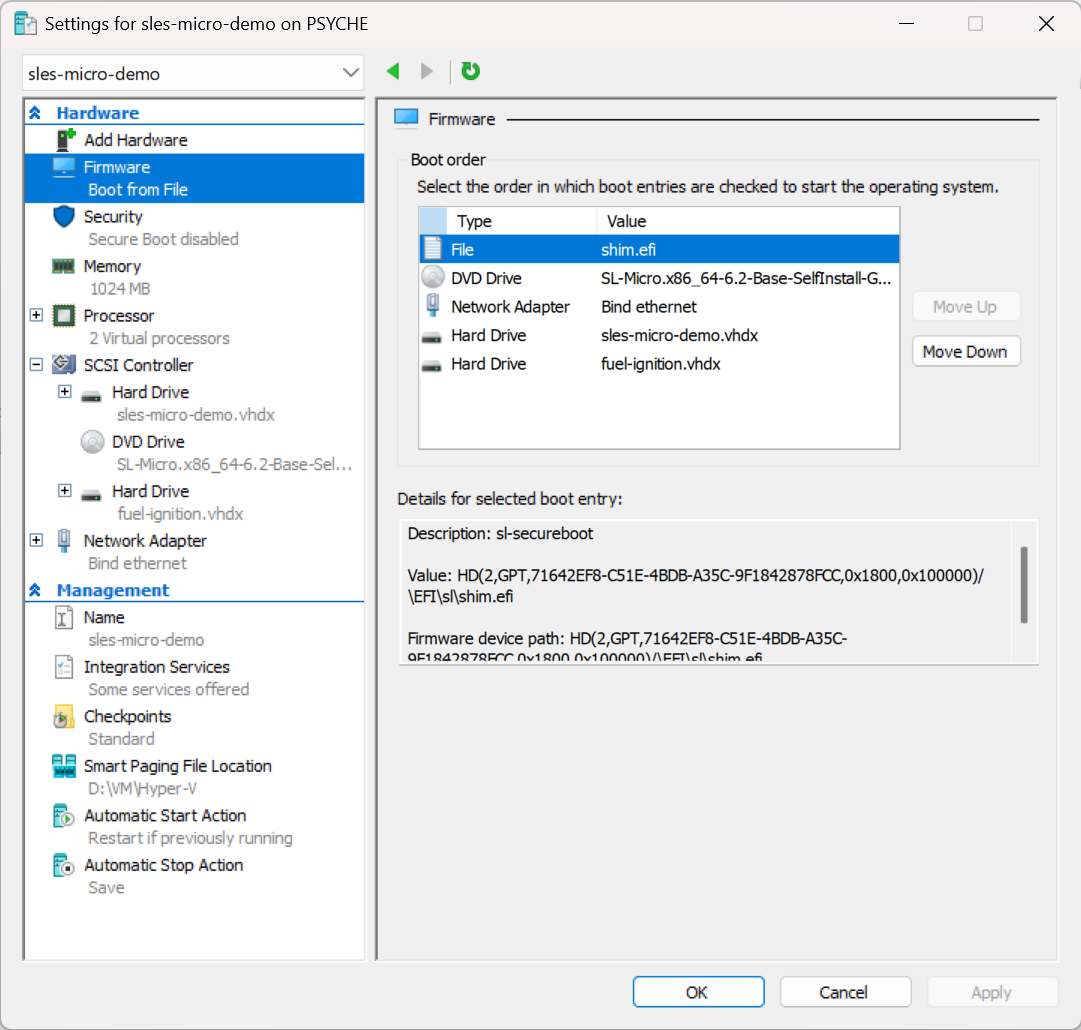
3. Prepare the Hyper-V VM with the minimum requirements
Create a Generation 2 VM with :
- Secure Boot: disabled
- 1 GB RAM, 2+ vCPUs
- 20 GB+ VHDX
- SLE Micro selfinstall ISO mounted on the DVD drive
4. Convert fuel-ignition.img to VHDX
Hyper-V's DVD drive won't accept raw .img files, so wrap it in a VHDX container :
qemu-img convert -f raw -O vhdx fuel-ignition.img fuel-ignition.vhdx
On Windows, qemu-img is available via :
- winget :
winget install -e --id cloudbase.qemu-img - Chocolatey :
choco install qemu-img - Or as a standalone build
Then attach fuel-ignition.vhdx as a second hard drive on the VM's SCSI controller. The first-boot process scans all block devices for the ignition label.
The label is the magic
Ignition (and Combustion) don't care about the device type, filename, or path : they scan every attached block device for a filesystem labeled ignition or combustion. That's why Fuel Ignition ships the config as a pre-labeled raw image, and why converting it to VHDX preserves the behavior : the label lives on the filesystem inside, not on the container.
5. Boot and install
- Boot the VM → select Install SL Micro
- Confirm the target disk : the image gets copied over
- System reboots via kexec
- Select SL Micro at the next boot menu
- Ignition finds your config disk and applies it automatically : no JeOS Firstboot wizard
6. Verify
Once first boot completes, SSH in with the user/key you defined in Fuel Ignition and check :
cat /etc/os-release
hostnamectl
ip addr
transactional-update --help
Then shut down, detach both the installer ISO and the config VHDX, and boot clean from the VHDX.
Next steps
You now have a running, immutable SLE Micro VM on Hyper-V, provisioned entirely from config files. The same approach scales from a single test VM to a fleet of edge devices.
- Register the system :
transactional-update register -r CODE -e EMAIL && reboot - Install packages the immutable way :
transactional-update pkg install <pkg> && reboot - For fleet deployments, the same Ignition/Combustion config drives everything from a single VM to thousands of edge devices.